Vue 在插入、更新或者移除 DOM 时,提供多种不同方式的应用过渡效果。包括以下工具:
- 在 CSS 过渡和动画中自动应用 class
- 可以配合使用第三方 CSS 动画库,如 Animate.css
- 在过渡钩子函数中使用 JavaScript 直接操作 DOM
- 可以配合使用第三方 JavaScript 动画库,如 Velocity.js
在这里,我们只会讲到进入、离开和列表的过渡,你也可以看下一节的管理过渡状态。
Vue 提供了 transition 的封装组件,在下列情形中,可以给任何元素和组件添加进入/离开过渡
- 条件渲染 (使用
v-if)
- 条件展示 (使用
v-show)
- 动态组件
- 组件根节点
这里是一个典型的例子:
1
2
3
4
5
6
7
8
| <div id="demo">
<button v-on:click="show = !show">
Toggle
</button>
<transition name="fade">
<p v-if="show">hello</p>
</transition>
</div>
|
1
2
3
4
5
6
| new Vue({
el: '#demo',
data: {
show: true
}
})
|
1
2
3
4
5
6
| .fade-enter-active, .fade-leave-active {
transition: opacity .5s;
}
.fade-enter, .fade-leave-to {
opacity: 0;
}
|
当插入或删除包含在 transition 组件中的元素时,Vue 将会做以下处理:
- 自动嗅探目标元素是否应用了 CSS 过渡或动画,如果是,在恰当的时机添加/删除 CSS 类名。
- 如果过渡组件提供了 JavaScript 钩子函数,这些钩子函数将在恰当的时机被调用。
- 如果没有找到 JavaScript 钩子并且也没有检测到 CSS 过渡/动画,DOM 操作 (插入/删除) 在下一帧中立即执行。(注意:此指浏览器逐帧动画机制,和 Vue 的
nextTick 概念不同)
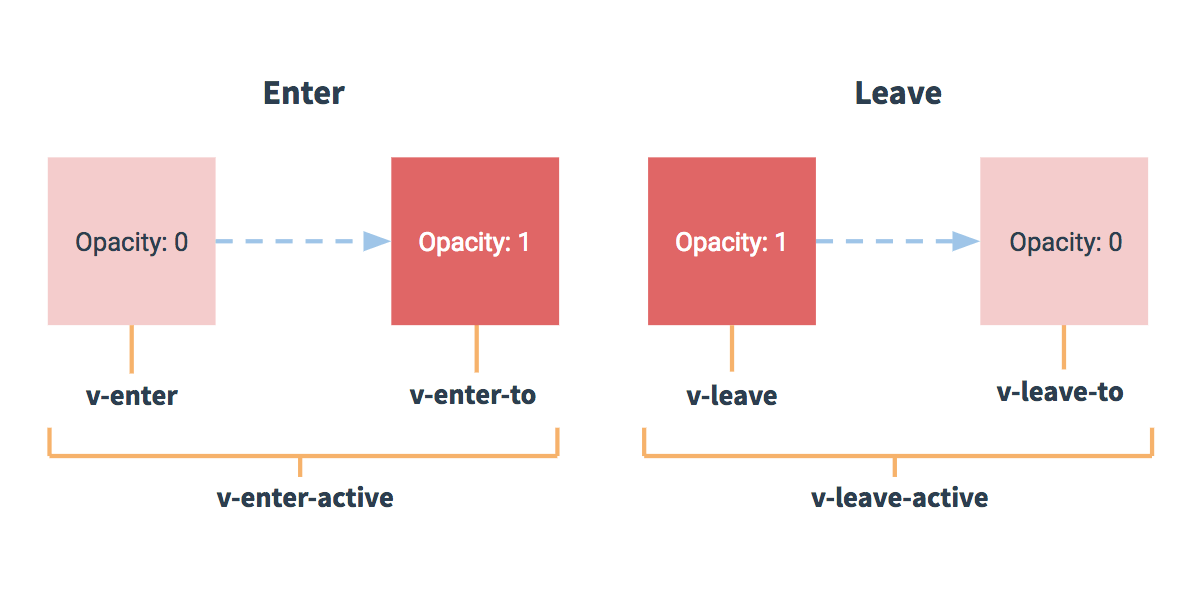
在进入/离开的过渡中,会有 6 个 class 切换。
v-enter:定义进入过渡的开始状态。在元素被插入之前生效,在元素被插入之后的下一帧移除。v-enter-active:定义进入过渡生效时的状态。在整个进入过渡的阶段中应用,在元素被插入之前生效,在过渡/动画完成之后移除。这个类可以被用来定义进入过渡的过程时间,延迟和曲线函数。v-enter-to:2.1.8 版及以上定义进入过渡的结束状态。在元素被插入之后下一帧生效 (与此同时 v-enter 被移除),在过渡/动画完成之后移除。v-leave:定义离开过渡的开始状态。在离开过渡被触发时立刻生效,下一帧被移除。v-leave-active:定义离开过渡生效时的状态。在整个离开过渡的阶段中应用,在离开过渡被触发时立刻生效,在过渡/动画完成之后移除。这个类可以被用来定义离开过渡的过程时间,延迟和曲线函数。v-leave-to:2.1.8 版及以上定义离开过渡的结束状态。在离开过渡被触发之后下一帧生效 (与此同时 v-leave 被删除),在过渡/动画完成之后移除。
![Transition Diagram]()
对于这些在过渡中切换的类名来说,如果你使用一个没有名字的 <transition>,则 v- 是这些类名的默认前缀。如果你使用了 <transition name="my-transition">,那么 v-enter 会替换为 my-transition-enter。
v-enter-active 和 v-leave-active 可以控制进入/离开过渡的不同的缓和曲线,在下面章节会有个示例说明。
常用的过渡都是使用 CSS 过渡。
下面是一个简单例子:
1
2
3
4
5
6
7
8
| <div id="example-1">
<button @click="show = !show">
Toggle render
</button>
<transition name="slide-fade">
<p v-if="show">hello</p>
</transition>
</div>
|
1
2
3
4
5
6
| new Vue({
el: '#example-1',
data: {
show: true
}
})
|
1
2
3
4
5
6
7
8
9
10
11
12
13
|
.slide-fade-enter-active {
transition: all .3s ease;
}
.slide-fade-leave-active {
transition: all .8s cubic-bezier(1.0, 0.5, 0.8, 1.0);
}
.slide-fade-enter, .slide-fade-leave-to
{
transform: translateX(10px);
opacity: 0;
}
|
CSS 动画用法同 CSS 过渡,区别是在动画中 v-enter 类名在节点插入 DOM 后不会立即删除,而是在 animationend 事件触发时删除。
示例:(省略了兼容性前缀)
1
2
3
4
5
6
| <div id="example-2">
<button @click="show = !show">Toggle show</button>
<transition name="bounce">
<p v-if="show">Lorem ipsum dolor sit amet, consectetur adipiscing elit. Mauris facilisis enim libero, at lacinia diam fermentum id. Pellentesque habitant morbi tristique senectus et netus.</p>
</transition>
</div>
|
1
2
3
4
5
6
| new Vue({
el: '#example-2',
data: {
show: true
}
})
|
1
2
3
4
5
6
7
8
9
10
11
12
13
14
15
16
17
| .bounce-enter-active {
animation: bounce-in .5s;
}
.bounce-leave-active {
animation: bounce-in .5s reverse;
}
@keyframes bounce-in {
0% {
transform: scale(0);
}
50% {
transform: scale(1.5);
}
100% {
transform: scale(1);
}
}
|
我们可以通过以下 attribute 来自定义过渡类名:
enter-classenter-active-classenter-to-class (2.1.8+)leave-classleave-active-classleave-to-class (2.1.8+)
他们的优先级高于普通的类名,这对于 Vue 的过渡系统和其他第三方 CSS 动画库,如 Animate.css 结合使用十分有用。
示例:
1
2
3
4
5
6
7
8
9
10
11
12
13
14
| <link href="https://cdn.jsdelivr.net/npm/[email protected]" rel="stylesheet" type="text/css">
<div id="example-3">
<button @click="show = !show">
Toggle render
</button>
<transition
name="custom-classes-transition"
enter-active-class="animated tada"
leave-active-class="animated bounceOutRight"
>
<p v-if="show">hello</p>
</transition>
</div>
|
1
2
3
4
5
6
| new Vue({
el: '#example-3',
data: {
show: true
}
})
|
Vue 为了知道过渡的完成,必须设置相应的事件监听器。它可以是 transitionend 或 animationend,这取决于给元素应用的 CSS 规则。如果你使用其中任何一种,Vue 能自动识别类型并设置监听。
但是,在一些场景中,你需要给同一个元素同时设置两种过渡动效,比如 animation 很快的被触发并完成了,而 transition 效果还没结束。在这种情况中,你就需要使用 type attribute 并设置 animation 或 transition 来明确声明你需要 Vue 监听的类型。
2.2.0 新增
在很多情况下,Vue 可以自动得出过渡效果的完成时机。默认情况下,Vue 会等待其在过渡效果的根元素的第一个 transitionend 或 animationend 事件。然而也可以不这样设定——比如,我们可以拥有一个精心编排的一系列过渡效果,其中一些嵌套的内部元素相比于过渡效果的根元素有延迟的或更长的过渡效果。
在这种情况下你可以用 <transition> 组件上的 duration prop 定制一个显性的过渡持续时间 (以毫秒计):
1
| <transition :duration="1000">...</transition>
|
你也可以定制进入和移出的持续时间:
1
| <transition :duration="{ enter: 500, leave: 800 }">...</transition>
|
可以在 attribute 中声明 JavaScript 钩子
1
2
3
4
5
6
7
8
9
10
11
12
13
| <transition
v-on:before-enter="beforeEnter"
v-on:enter="enter"
v-on:after-enter="afterEnter"
v-on:enter-cancelled="enterCancelled"
v-on:before-leave="beforeLeave"
v-on:leave="leave"
v-on:after-leave="afterLeave"
v-on:leave-cancelled="leaveCancelled"
>
</transition>
|
1
2
3
4
5
6
7
8
9
10
11
12
13
14
15
16
17
18
19
20
21
22
23
24
25
26
27
28
29
30
31
32
33
34
35
36
37
38
39
40
41
42
43
|
methods: {
beforeEnter: function (el) {
},
enter: function (el, done) {
done()
},
afterEnter: function (el) {
},
enterCancelled: function (el) {
},
beforeLeave: function (el) {
},
leave: function (el, done) {
done()
},
afterLeave: function (el) {
},
leaveCancelled: function (el) {
}
}
|
这些钩子函数可以结合 CSS transitions/animations 使用,也可以单独使用。
当只用 JavaScript 过渡的时候,在 enter 和 leave 中必须使用 done 进行回调。否则,它们将被同步调用,过渡会立即完成。
推荐对于仅使用 JavaScript 过渡的元素添加 v-bind:css="false",Vue 会跳过 CSS 的检测。这也可以避免过渡过程中 CSS 的影响。
一个使用 Velocity.js 的简单例子:
1
2
3
4
5
6
7
8
9
10
11
12
13
14
15
16
17
18
19
20
|
<script src="https://cdnjs.cloudflare.com/ajax/libs/velocity/1.2.3/velocity.min.js"></script>
<div id="example-4">
<button @click="show = !show">
Toggle
</button>
<transition
v-on:before-enter="beforeEnter"
v-on:enter="enter"
v-on:leave="leave"
v-bind:css="false"
>
<p v-if="show">
Demo
</p>
</transition>
</div>
|
1
2
3
4
5
6
7
8
9
10
11
12
13
14
15
16
17
18
19
20
21
22
23
24
25
26
| new Vue({
el: '#example-4',
data: {
show: false
},
methods: {
beforeEnter: function (el) {
el.style.opacity = 0
el.style.transformOrigin = 'left'
},
enter: function (el, done) {
Velocity(el, { opacity: 1, fontSize: '1.4em' }, { duration: 300 })
Velocity(el, { fontSize: '1em' }, { complete: done })
},
leave: function (el, done) {
Velocity(el, { translateX: '15px', rotateZ: '50deg' }, { duration: 600 })
Velocity(el, { rotateZ: '100deg' }, { loop: 2 })
Velocity(el, {
rotateZ: '45deg',
translateY: '30px',
translateX: '30px',
opacity: 0
}, { complete: done })
}
}
})
|
可以通过 appear attribute 设置节点在初始渲染的过渡
1
2
3
| <transition appear>
</transition>
|
这里默认和进入/离开过渡一样,同样也可以自定义 CSS 类名。
1
2
3
4
5
6
7
8
| <transition
appear
appear-class="custom-appear-class"
appear-to-class="custom-appear-to-class" (2.1.8+)
appear-active-class="custom-appear-active-class"
>
</transition>
|
自定义 JavaScript 钩子:
1
2
3
4
5
6
7
8
9
| <transition
appear
v-on:before-appear="customBeforeAppearHook"
v-on:appear="customAppearHook"
v-on:after-appear="customAfterAppearHook"
v-on:appear-cancelled="customAppearCancelledHook"
>
</transition>
|
在上面的例子中,无论是 appear attribute 还是 v-on:appear 钩子都会生成初始渲染过渡。
我们之后讨论多个组件的过渡,对于原生标签可以使用 v-if/v-else。最常见的多标签过渡是一个列表和描述这个列表为空消息的元素:
1
2
3
4
5
6
| <transition>
<table v-if="items.length > 0">
</table>
<p v-else>Sorry, no items found.</p>
</transition>
|
可以这样使用,但是有一点需要注意:
当有相同标签名的元素切换时,需要通过 key attribute 设置唯一的值来标记以让 Vue 区分它们,否则 Vue 为了效率只会替换相同标签内部的内容。即使在技术上没有必要,给在 <transition> 组件中的多个元素设置 key 是一个更好的实践。
示例:
1
2
3
4
5
6
7
8
| <transition>
<button v-if="isEditing" key="save">
Save
</button>
<button v-else key="edit">
Edit
</button>
</transition>
|
在一些场景中,也可以通过给同一个元素的 key attribute 设置不同的状态来代替 v-if 和 v-else,上面的例子可以重写为:
1
2
3
4
5
| <transition>
<button v-bind:key="isEditing">
{{ isEditing ? 'Save' : 'Edit' }}
</button>
</transition>
|
使用多个 v-if 的多个元素的过渡可以重写为绑定了动态 property 的单个元素过渡。例如:
1
2
3
4
5
6
7
8
9
10
11
| <transition>
<button v-if="docState === 'saved'" key="saved">
Edit
</button>
<button v-if="docState === 'edited'" key="edited">
Save
</button>
<button v-if="docState === 'editing'" key="editing">
Cancel
</button>
</transition>
|
可以重写为:
1
2
3
4
5
6
7
8
9
10
11
12
13
14
15
| <transition>
<button v-bind:key="docState">
{{ buttonMessage }}
</button>
</transition>
// ...
computed: {
buttonMessage: function () {
switch (this.docState) {
case 'saved': return 'Edit'
case 'edited': return 'Save'
case 'editing': return 'Cancel'
}
}
}
|
Vue 提供了过渡模式
in-out:新元素先进行过渡,完成之后当前元素过渡离开。out-in:当前元素先进行过渡,完成之后新元素过渡进入。
用 out-in 重写之前的开关按钮过渡:
1
2
3
| <transition name="fade" mode="out-in">
</transition>
|
只用添加一个简单的 attribute,就解决了之前的过渡问题而无需任何额外的代码。
in-out 模式不是经常用到,但对于一些稍微不同的过渡效果还是有用的。
多个组件的过渡简单很多 - 我们不需要使用 key attribute。相反,我们只需要使用动态组件:
1
2
3
| <transition name="component-fade" mode="out-in">
<component v-bind:is="view"></component>
</transition>
|
1
2
3
4
5
6
7
8
9
10
11
12
13
14
| new Vue({
el: '#transition-components-demo',
data: {
view: 'v-a'
},
components: {
'v-a': {
template: '<div>Component A</div>'
},
'v-b': {
template: '<div>Component B</div>'
}
}
})
|
1
2
3
4
5
6
7
| .component-fade-enter-active, .component-fade-leave-active {
transition: opacity .3s ease;
}
.component-fade-enter, .component-fade-leave-to
{
opacity: 0;
}
|
目前为止,关于过渡我们已经讲到:
那么怎么同时渲染整个列表,比如使用 v-for?在这种场景中,使用 <transition-group> 组件。在我们深入例子之前,先了解关于这个组件的几个特点:
- 不同于
<transition>,它会以一个真实元素呈现:默认为一个 <span>。你也可以通过 tag attribute 更换为其他元素。
- 过渡模式不可用,因为我们不再相互切换特有的元素。
- 内部元素总是需要提供唯一的
key attribute 值。
- CSS 过渡的类将会应用在内部的元素中,而不是这个组/容器本身。
现在让我们由一个简单的例子深入,进入和离开的过渡使用之前一样的 CSS 类名。
1
2
3
4
5
6
7
8
9
| <div id="list-demo" class="demo">
<button v-on:click="add">Add</button>
<button v-on:click="remove">Remove</button>
<transition-group name="list" tag="p">
<span v-for="item in items" v-bind:key="item" class="list-item">
{{ item }}
</span>
</transition-group>
</div>
|
1
2
3
4
5
6
7
8
9
10
11
12
13
14
15
16
17
18
| new Vue({
el: '#list-demo',
data: {
items: [1,2,3,4,5,6,7,8,9],
nextNum: 10
},
methods: {
randomIndex: function () {
return Math.floor(Math.random() * this.items.length)
},
add: function () {
this.items.splice(this.randomIndex(), 0, this.nextNum++)
},
remove: function () {
this.items.splice(this.randomIndex(), 1)
},
}
})
|
1
2
3
4
5
6
7
8
9
10
11
12
| .list-item {
display: inline-block;
margin-right: 10px;
}
.list-enter-active, .list-leave-active {
transition: all 1s;
}
.list-enter, .list-leave-to
{
opacity: 0;
transform: translateY(30px);
}
|
这个例子有个问题,当添加和移除元素的时候,周围的元素会瞬间移动到他们的新布局的位置,而不是平滑的过渡,我们下面会解决这个问题。
<transition-group> 组件还有一个特殊之处。不仅可以进入和离开动画,还可以改变定位。要使用这个新功能只需了解新增的 v-move class,它会在元素的改变定位的过程中应用。像之前的类名一样,可以通过 name attribute 来自定义前缀,也可以通过 move-class attribute 手动设置。
v-move 对于设置过渡的切换时机和过渡曲线非常有用,你会看到如下的例子:
1
2
3
4
5
6
7
8
9
10
| <script src="https://cdnjs.cloudflare.com/ajax/libs/lodash.js/4.14.1/lodash.min.js"></script>
<div id="flip-list-demo" class="demo">
<button v-on:click="shuffle">Shuffle</button>
<transition-group name="flip-list" tag="ul">
<li v-for="item in items" v-bind:key="item">
{{ item }}
</li>
</transition-group>
</div>
|
1
2
3
4
5
6
7
8
9
10
11
12
13
14
| new Vue({
el: '#flip-list-demo',
data: {
items: [1,2,3,4,5,6,7,8,9]
},
methods: {
shuffle: function () {
this.items = _.shuffle(this.items)
}
}
})
.flip-list-move {
transition: transform 1s;
}
|
这个看起来很神奇,内部的实现,Vue 使用了一个叫 FLIP 简单的动画队列
使用 transforms 将元素从之前的位置平滑过渡新的位置。
我们将之前实现的例子和这个技术结合,使我们列表的一切变动都会有动画过渡。
1
2
3
4
5
6
7
8
9
10
11
12
13
14
15
16
| <script src="https://cdnjs.cloudflare.com/ajax/libs/lodash.js/4.14.1/lodash.min.js"></script>
<div id="list-complete-demo" class="demo">
<button v-on:click="shuffle">Shuffle</button>
<button v-on:click="add">Add</button>
<button v-on:click="remove">Remove</button>
<transition-group name="list-complete" tag="p">
<span
v-for="item in items"
v-bind:key="item"
class="list-complete-item"
>
{{ item }}
</span>
</transition-group>
</div>
|
1
2
3
4
5
6
7
8
9
10
11
12
13
14
15
16
17
18
19
20
21
22
23
24
25
26
27
28
29
30
31
32
33
34
| new Vue({
el: '#list-complete-demo',
data: {
items: [1,2,3,4,5,6,7,8,9],
nextNum: 10
},
methods: {
randomIndex: function () {
return Math.floor(Math.random() * this.items.length)
},
add: function () {
this.items.splice(this.randomIndex(), 0, this.nextNum++)
},
remove: function () {
this.items.splice(this.randomIndex(), 1)
},
shuffle: function () {
this.items = _.shuffle(this.items)
}
}
})
.list-complete-item {
transition: all 1s;
display: inline-block;
margin-right: 10px;
}
.list-complete-enter, .list-complete-leave-to
{
opacity: 0;
transform: translateY(30px);
}
.list-complete-leave-active {
position: absolute;
}
|
需要注意的是使用 FLIP 过渡的元素不能设置为 display: inline 。作为替代方案,可以设置为 display: inline-block 或者放置于 flex 中
FLIP 动画不仅可以实现单列过渡,多维网格也同样可以过渡:
通过 data attribute 与 JavaScript 通信,就可以实现列表的交错过渡:
1
2
3
4
5
6
7
8
9
10
11
12
13
14
15
16
17
18
19
| <script src="https://cdnjs.cloudflare.com/ajax/libs/velocity/1.2.3/velocity.min.js"></script>
<div id="staggered-list-demo">
<input v-model="query">
<transition-group
name="staggered-fade"
tag="ul"
v-bind:css="false"
v-on:before-enter="beforeEnter"
v-on:enter="enter"
v-on:leave="leave"
>
<li
v-for="(item, index) in computedList"
v-bind:key="item.msg"
v-bind:data-index="index"
>{{ item.msg }}</li>
</transition-group>
</div>
|
1
2
3
4
5
6
7
8
9
10
11
12
13
14
15
16
17
18
19
20
21
22
23
24
25
26
27
28
29
30
31
32
33
34
35
36
37
38
39
40
41
42
43
44
45
46
47
| new Vue({
el: '#staggered-list-demo',
data: {
query: '',
list: [
{ msg: 'Bruce Lee' },
{ msg: 'Jackie Chan' },
{ msg: 'Chuck Norris' },
{ msg: 'Jet Li' },
{ msg: 'Kung Fury' }
]
},
computed: {
computedList: function () {
var vm = this
return this.list.filter(function (item) {
return item.msg.toLowerCase().indexOf(vm.query.toLowerCase()) !== -1
})
}
},
methods: {
beforeEnter: function (el) {
el.style.opacity = 0
el.style.height = 0
},
enter: function (el, done) {
var delay = el.dataset.index * 150
setTimeout(function () {
Velocity(
el,
{ opacity: 1, height: '1.6em' },
{ complete: done }
)
}, delay)
},
leave: function (el, done) {
var delay = el.dataset.index * 150
setTimeout(function () {
Velocity(
el,
{ opacity: 0, height: 0 },
{ complete: done }
)
}, delay)
}
}
})
|
过渡可以通过 Vue 的组件系统实现复用。要创建一个可复用过渡组件,你需要做的就是将 <transition> 或者 <transition-group> 作为根组件,然后将任何子组件放置在其中就可以了。
使用 template 的简单例子:
1
2
3
4
5
6
7
8
9
10
11
12
13
14
15
16
17
18
19
20
| Vue.component('my-special-transition', {
template: '\
<transition\
name="very-special-transition"\
mode="out-in"\
v-on:before-enter="beforeEnter"\
v-on:after-enter="afterEnter"\
>\
<slot></slot>\
</transition>\
',
methods: {
beforeEnter: function (el) {
},
afterEnter: function (el) {
}
}
})
|
函数式组件更适合完成这个任务:
1
2
3
4
5
6
7
8
9
10
11
12
13
14
15
16
17
18
19
20
| Vue.component('my-special-transition', {
functional: true,
render: function (createElement, context) {
var data = {
props: {
name: 'very-special-transition',
mode: 'out-in'
},
on: {
beforeEnter: function (el) {
},
afterEnter: function (el) {
}
}
}
return createElement('transition', data, context.children)
}
})
|
在 Vue 中即使是过渡也是数据驱动的!动态过渡最基本的例子是通过 name attribute 来绑定动态值。
1
2
3
| <transition v-bind:name="transitionName">
</transition>
|
当你想用 Vue 的过渡系统来定义的 CSS 过渡/动画在不同过渡间切换会非常有用。
所有过渡 attribute 都可以动态绑定,但我们不仅仅只有 attribute 可以利用,还可以通过事件钩子获取上下文中的所有数据,因为事件钩子都是方法。这意味着,根据组件的状态不同,你的 JavaScript 过渡会有不同的表现。
1
2
3
4
5
6
7
8
9
10
11
12
13
14
15
16
17
18
19
20
21
22
| <script src="https://cdnjs.cloudflare.com/ajax/libs/velocity/1.2.3/velocity.min.js"></script>
<div id="dynamic-fade-demo" class="demo">
Fade In: <input type="range" v-model="fadeInDuration" min="0" v-bind:max="maxFadeDuration">
Fade Out: <input type="range" v-model="fadeOutDuration" min="0" v-bind:max="maxFadeDuration">
<transition
v-bind:css="false"
v-on:before-enter="beforeEnter"
v-on:enter="enter"
v-on:leave="leave"
>
<p v-if="show">hello</p>
</transition>
<button
v-if="stop"
v-on:click="stop = false; show = false"
>Start animating</button>
<button
v-else
v-on:click="stop = true"
>Stop it!</button>
</div>
|
1
2
3
4
5
6
7
8
9
10
11
12
13
14
15
16
17
18
19
20
21
22
23
24
25
26
27
28
29
30
31
32
33
34
35
36
37
38
39
40
41
42
43
44
| new Vue({
el: '#dynamic-fade-demo',
data: {
show: true,
fadeInDuration: 1000,
fadeOutDuration: 1000,
maxFadeDuration: 1500,
stop: true
},
mounted: function () {
this.show = false
},
methods: {
beforeEnter: function (el) {
el.style.opacity = 0
},
enter: function (el, done) {
var vm = this
Velocity(el,
{ opacity: 1 },
{
duration: this.fadeInDuration,
complete: function () {
done()
if (!vm.stop) vm.show = false
}
}
)
},
leave: function (el, done) {
var vm = this
Velocity(el,
{ opacity: 0 },
{
duration: this.fadeOutDuration,
complete: function () {
done()
vm.show = true
}
}
)
}
}
})
|
最后,创建动态过渡的最终方案是组件通过接受 props 来动态修改之前的过渡。一句老话,唯一的限制是你的想象力。
参考
介绍 — Vue.js